
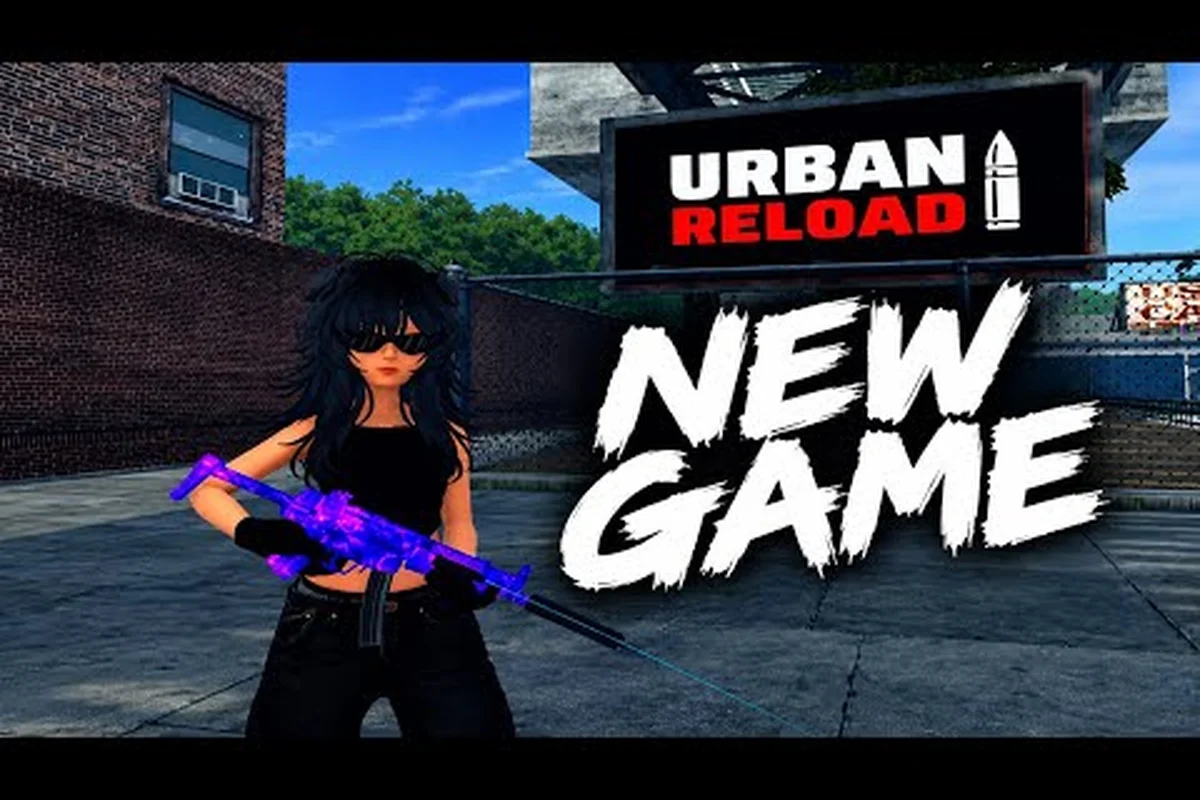
Mobile performance can decide whether Urban Reload feels precise or frustrating, especially when a touch control hides movement behind a joystick and a fire button. This urban reload mobile guide shows how to tune the essentials for smoother aiming, clearer sound cues, and more consistent matches on a phone.
Urban Reload Mobile Setup Checklist for Better Play
Start with a short setup before entering a match. Clear background apps, use a stable internet connection, and keep the phone’s battery saver from limiting performance. Most importantly, make every setting change in the game’s options menu rather than relying on device presets, because frame-rate stability and input latency can change the feel more than raw resolution.
A practical mobile setup includes: choosing the display mode that matches your device’s refresh rate, disabling aggressive thermal throttling where possible, and confirming that touch sampling remains consistent during sustained Urban Reload matches. For example, if the game’s graphics menu offers 30, 60, or 90 FPS options, favor the highest stable tier rather than a higher resolution that causes dropped frames; in Team Deathmatch, a steady frame rate can make target tracking and cover movement easier to judge. Keep brightness moderate enough to preserve contrast without washing out enemies, and test the setup in a live match because menu performance does not always reflect performance under network load.
-
Stable graphics mode that maintains a consistent frame rate.
-
Minimum music volume so footsteps and combat cues remain clear.
-
Readable crosshair color based on the environment you use most.
-
Comfortable stick sensitivity that allows movement without accidental input.
-
Fire-button placement adjusted for the way you hold the phone.
The order matters. Apply graphics first, test in an actual match, adjust controls second, and change audio or crosshair choices last. This isolates each variable and prevents you from repeatedly changing several settings when the game feels inconsistent. If you are new to the game overall, the Urban Reload beginner guide can help with the basic gameplay loop before you fine-tune the mobile presentation.
Recommended Baseline Configuration
Treat this table as a baseline for Urban Reload, then compare it with your own results rather than assuming the values transfer unchanged between devices. Screen size, touch latency, sustained frame-rate stability, and the current game version can make the same camera sensitivity or movement-stick setting feel very different. For example, keep the movement stick at Medium if strafing around cover feels accurate, but lower it if your character overcorrects during close-range encounters; likewise, reduce master volume or music if directional gunfire becomes difficult to distinguish from nearby voice and media audio. These adjustments should be tested in a low-stakes match, where you can check turning speed, crosshair placement, and whether audio cues arrive before an enemy appears.
| Setting group | Mobile baseline | Reason |
|---|---|---|
| Graphics quality | Medium or the highest stable option | Balances detail with repeatable performance |
| Frame-rate priority | Highest stable setting available | Reduces visual inconsistency during movement |
| Master volume | About 70–80% | Preserves sound cues without crowding voice or media audio |
| Music | 0–20% | Keeps directional and combat sounds easier to hear |
| Camera sensitivity | Low-to-medium starting point | Supports finer aiming adjustments |
| Movement stick | Medium starting point | Allows responsive turns without constant corrections |
These numbers are practical starting points, not verified developer specifications. Based on community testing and common mobile control conventions, individual results can vary by phone, screen size, and current game version. Test the configuration in a low-stakes match and note whether turns, shots, and sound cues feel delayed.
Urban Reload Audio Settings for Clearer Mobile Combat Cues
Good audio settings help you separate important events from background noise, which is especially useful when your phone speaker competes with traffic, music, or a crowded room. Urban Reload audio settings should prioritize gunfire, footsteps, reload cues, and other combat information rather than making every sound equally loud.
Separate Sound Categories Instead of Maximizing Everything
Turning the master volume all the way up does not necessarily make combat information clearer. It can increase distortion, and it leaves less room for you to distinguish similar sounds. Instead, lower music, set effects to a comfortable level, and adjust voice communication according to your environment.
| Audio option | Suggested starting level | Best adjustment approach |
|---|---|---|
| Master volume | 70–80% | Raise only if important effects become difficult to hear |
| Music | 0–20% | Lower during matches if it masks footsteps or actions |
| Game effects | 70–90% | Increase slightly if gunfire or reload sounds feel indistinct |
| Voice chat | 20–60% | Match it to team communication and speaker quality |
If your device supports separate volume controls, a common mobile configuration is music at roughly 20%, game effects around 70%, and voice chat low enough that the main speaker never clips. These figures are community-informed starting points rather than official presets. Test them with headphones if possible, because speakers can make low frequencies and overlapping effects harder to distinguish.
Test the Three Essential Cues
A settings check should include more than confirming that the game is audible. Listen for at least three cues during a match: movement behind or beside you, the weapon action during a reload, and the impact or alert associated with nearby activity. Turn your head or adjust camera position immediately after each sound. If you consistently react late, inspect the effect volume and test whether background music is masking it.
Player experience suggests that reducing music is often more useful than adding extra bass or simulated surround sound. Phones have widely different speaker layouts, so equalizer presets cannot produce identical results. A neutral preset is usually the safest starting point because it leaves more headroom for effects without making distant sounds artificially loud.
Urban Reload Crosshair Settings for Accurate Touch Aiming
The right crosshair should remain visible without covering the point you are trying to inspect. Urban Reload crosshair settings can make first aiming less dependent on a tiny screen, but clarity matters more than decoration. If the symbol disappears against a road, wall, or bright surface, the setting is creating more confusion than value.
Choose Visibility Before Style
Color is the first practical decision. A bright symbol with a dark outline is usually easier to identify on mixed backgrounds. If the game offers multiple outlines, apply the outline even when it seems excessive, because a crisp edge can preserve visibility without enlarging the central aiming point.
| Crosshair choice | Strength | Limitation | Best use |
|---|---|---|---|
| Bright solid color | Clear at a glance | May blend into bright surfaces | General play on darker maps |
| Dark solid color | Visible against pale scenery | Can disappear in shadows | Daylight and concrete-heavy areas |
| High-contrast outline | Improves edge recognition | Slightly more visual clutter | All-around mobile use |
| Minimal symbol | Keeps the center less obstructed | Harder to locate during quick turns | Experienced players with large controls |
If the game lets you select crosshair size, begin with the default or middle option. Avoid the largest setting merely to make the marker easy to see, because an oversized symbol can obscure distant targets. Similarly, do not choose a thin, transparent symbol if it disappears during fast camera adjustments. The best result is the one you can locate instantly without looking away from the scene.
Match the Crosshair to Your Grip
A large phone held horizontally leaves less screen space around the controls, so crosshair position becomes more important when a visual overlay sits near the center. Test the marker while using your normal firing grip, then make small camera corrections. If your thumb naturally covers the lower portion of the screen, a crosshair placed too low can feel partially blocked even when the graphics are correct.
Crosshair visibility also depends on motion. If you cannot follow the symbol during a 180-degree turn, lower camera sensitivity slightly before replacing the crosshair. Excessive sensitivity creates visual instability that no symbol can correct. For broader aiming techniques, the Urban Reload urban combat tactics guide explains how steadier movement and deliberate target acquisition reduce the need for oversized visual cues.
Urban Reload Controls and Sensitivity for Touch Screens
Touch controls should shorten the path from intention to action. If you have to correct the movement stick after every strafe or accidentally fire while repositioning, the configuration is asking for too much precision. The best Urban Reload mobile guide recommendation is to tune one control at a time while completing a consistent drill: move between two landmarks, track a target, fire a controlled burst, and repeat.
Tune Movement and Camera Separately
Movement sensitivity determines how quickly your character responds to the stick. Camera sensitivity determines how far the view travels when you drag. Keeping the two values close to each other can create a simple baseline, but it is not mandatory. Players who rely on broad, quick camera turns may prefer a slightly higher camera value, while close-range aiming may benefit from a lower setting.
| Adjustment | Lower setting feels like | Higher setting feels like | Useful test |
|---|---|---|---|
| Camera sensitivity | Careful, controlled aiming | Faster target acquisition | Track a moving target without overcorrecting |
| Movement sensitivity | Deliberate repositioning | Quick direction changes | Turn and strafe around one corner |
| Fire button position | Stable two-thumb use | Faster access, more accidental taps | Perform repeated direction changes |
| Sprint control | Fewer accidental activations | Faster movement changes | Enter and leave cover while facing a target |
Make one change per test session. After adjusting, play for several minutes rather than judging the first shot, because unfamiliar settings need a short adjustment period. If the new value causes repeated misses, move it back by a small amount rather than making a large correction.
Use a Safe Practice Routine
The Urban Reload first-hour guide provides a useful sequence of early objectives. During that progression, use the same warm-up before each match: check the crosshair and audio cues, then enter a low-risk match to establish whether aim, movement, or sound cues are causing the issue. This creates a repeatable baseline for mobile Urban Reload play without changing several settings at once.
-
Set the camera sensitivity to the current baseline.
-
Walk a known route without firing to test movement and camera separation.
-
Practice controlled shots against a stationary target.
-
Add a turning movement while keeping the target centered.
-
Repeat the sequence in a live match and record what feels inconsistent.
This routine separates visual aiming problems from control problems. A target that drifts while the character stands still may indicate camera sensitivity, while sudden overcorrection usually points to the movement stick. The method is more useful than copying another player’s exact settings because phone dimensions, control offsets, and personal reaction speed differ.
Urban Reload Game Modes Explained by Player Priorities
Mode choice affects objectives, pacing, and how much your settings matter. Urban Reload game modes explained through the priorities of each encounter helps players decide whether they want immediate action, steady progression, or a different balance between moving and fighting. Because mode names and rotation details may change, verify the current selector in-game before committing.
Match Objectives Shape Your Settings
Some modes reward quick movement, others emphasize completing tasks, and additional modes may focus on direct competition. Even without relying on an unverified mode list, the practical principle is clear: if most of your time is spent moving between objectives, prioritize stable frame rate and comfortable camera speed. If encounters are frequent, make audio cues easier to distinguish.
| Priority | Mode type to seek | Settings emphasis | Main reason |
|---|---|---|---|
| Fast action | Direct combat or team-based fighting | Responsive controls and clear effects | Rewards fast target acquisition |
| Steady progression | Task or objective-oriented play | Stable visuals and moderate sensitivity | Supports consistent completion |
| Team coordination | Crew or squad-focused competition | Voice volume and readable HUD | Makes communication easier |
| Open exploration | Free-roam or discovery-focused play | Balanced graphics and navigation | Reduces distractions during movement |
Players who want a clearer understanding of early objectives can consult the Urban Reload map guide for the city layout and available starting areas. Knowing the route can reduce unnecessary movement, which makes a stable frame rate and restrained camera sensitivity more valuable than extreme sensitivity.
Build a Mode-Specific Backup Profile
If the game permits you to save or quickly change profiles, create a combat preset and a movement preset. A combat preset can favor quicker camera response and brighter effects, while a movement preset can reduce camera speed and keep the crosshair simple. Duplicate your main configuration before experimenting so you always have a stable fallback.
Do not assume one mode always requires a different setup. In practice, a moderate baseline often works across several modes. Change only the setting connected to the mode’s main demand: aiming for combat, navigation for objective play, or communication for team events. This urban reload mobile guide approach prevents constant toggling and helps you identify which adjustments produce measurable improvements.
Performance, Layout, and Matchday Testing
Even well-tuned settings fail if the phone overheats, loses network stability, or displays too many elements at once. Performance testing should happen in the same environment where you normally play, because a quiet room can hide frame drops that appear during a crowded match or while using mobile data.
Run a Three-Round Stability Check
Use this practical sequence: load Urban Reload, complete a short match, then restart the app before each test round so the comparison reflects a fresh session rather than a warmed-up device. Note the selected graphics preset, frame behavior, touch latency, and audio level at the same encounter point. Repeat the test under your usual network conditions, because a smooth crosshair settings profile cannot compensate for unstable connection timing or clipped urban reload audio settings.
| Test | What to watch | Action if quality drops |
|---|---|---|
| First round | Frame consistency and camera response | Lower demanding graphics options |
| Second round | Heat, touch response, and input delay | Let the device cool and close background apps |
| Third round | Network stability and sound clarity | Switch networks or reduce unrelated device activity |
The goal is not to chase a resolution label; it is to create repeatable performance. If the game looks sharp but the camera stutters while turning, the extra visual detail is not helping. Likewise, maximum effects volume that clips on the speaker is less useful than a slightly lower level that preserves separate combat cues.
Keep the Device Ready
Practical device habits include disabling aggressive battery modes during a session, using a stable charging method, and leaving enough storage for the game to update. Phones with aggressive thermal management may reduce brightness or frame rate after sustained play. Cooling the device and avoiding direct sun can prevent a late-match performance drop.
After every update, retest the baseline rather than assuming nothing changed. Developers can adjust control behavior, graphics options, or sound channels between versions. The exact settings available also may vary by platform, so treat every numerical recommendation as a starting point and confirm the current options inside the game.
Frequently Asked Questions
What are the best settings for Urban Reload on mobile?
Start with stable medium graphics, music between 0–20%, effects around 70–90%, and moderate camera sensitivity. Adjust from there based on frame consistency and personal control preference. Test one change at a time because phone models, screen sizes, and game updates can affect the ideal configuration.
How should I configure Urban Reload audio settings for footsteps?
Lower the music first, then keep game effects high enough to distinguish footsteps, reloads, and nearby combat. Speaker quality and background noise matter more than boosting every channel. Use headphones when possible and verify the settings during an actual match instead of relying only on the options preview.
Which Urban Reload crosshair settings work best on a phone screen?
Choose a small or medium symbol with strong contrast and, if available, a dark outline. Avoid a marker that blends into common surfaces or blocks the center of the screen. If it becomes difficult to follow while turning, reduce camera sensitivity before enlarging the crosshair.
Should I change sensitivity separately for each game mode?
Only when your priorities differ clearly. Combat may benefit from slightly faster camera movement, while objective and exploration modes often feel better with a calmer camera. Keep a known baseline and make small adjustments, because switching between many values can make basic aiming less consistent.
How do I know whether my mobile setup needs more work?
Watch for repeated overcorrection, missed shots caused by slow turning, hidden targets, and frame drops during fast movement. These symptoms point to different settings, so change camera sensitivity, crosshair visibility, or graphics one at a time. A stable configuration keeps aim, sound, and movement readable under pressure.